One of my preferred methods for navigating different views in a mobile app is tab navigation. I favor it because I can operate it with my thumb using one hand.
Consequently, incorporating tab navigation has become a standard practice in my mobile app development. Fortunately, there’s a Kotlin Multiplatform Mobile library that lets us write navigation code once and reuse it across platforms.
This post outlines the steps to add three example tabs to an application. As with my previous post on Kotlin Multiplatform, I typically apply this pattern in a new app by copying and pasting the relevant code snippets.
Below is a depiction of the sample app layout: a title bar at the top, the main content in the center, and a navigation bar at the bottom.
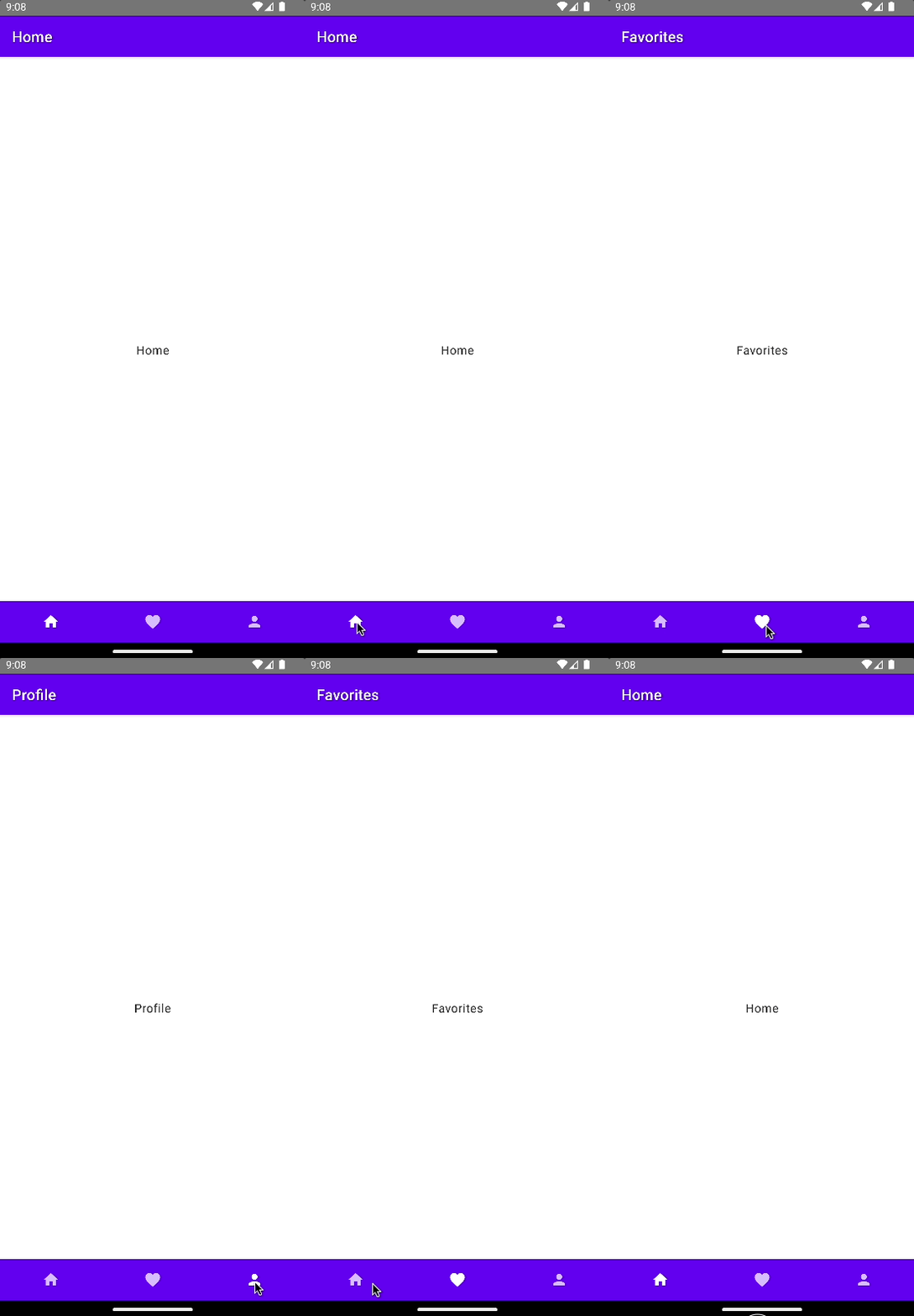
We’ll start by adding the dependencies in gradle/libs.versions.toml:
[versions]
...
voyager = "1.0.0"

[libraries]
...
voyager-tab-navigator = { module = "cafe.adriel.voyager:voyager-tab-navigator", version.ref = "voyager" }
voyager-transitions = { module = "cafe.adriel.voyager:voyager-transitions", version.ref = "voyager" }
Next, we’ll add the dependencies to our source set, located in composeApp/build.gradle.kts.
kotlin {
...
 sourceSets {
		...
		commonMain.dependencies {
			...
			implementation(libs.voyager.tab.navigator)
			implementation(libs.voyager.transitions)
		}
 }
}
Now synchronize your IDE so the changes take effect.
Next, add wrapper code for our navigation items. Place this code in the file composeApp/src/commonMain/kotlin/TabNavigationItem.kt.
import androidx.compose.foundation.layout.RowScope
import androidx.compose.material.BottomNavigationItem
import androidx.compose.material.Icon
import androidx.compose.runtime.Composable
import cafe.adriel.voyager.navigator.tab.LocalTabNavigator
import cafe.adriel.voyager.navigator.tab.Tab

@Composable
fun RowScope.TabNavigationItem(tab: Tab) {
  val tabNavigator = LocalTabNavigator.current

  BottomNavigationItem(
    selected = tabNavigator.current.key == tab.key,
    onClick = { tabNavigator.current = tab },
    icon = { Icon(painter = tab.options.icon!!, contentDescription = tab.options.title) }
  )
}
Let’s create three tabs in our sample application: “Home”, “Favourites”, and “Profile”.
The file for the “Home” tab is located at composeApp/src/commonMain/kotlin/HomeTab.kt.
import androidx.compose.material.Text
import androidx.compose.material.icons.Icons
import androidx.compose.material.icons.filled.Home
import androidx.compose.runtime.Composable
import androidx.compose.runtime.remember
import androidx.compose.ui.graphics.vector.rememberVectorPainter
import cafe.adriel.voyager.navigator.tab.Tab
import cafe.adriel.voyager.navigator.tab.TabOptions

object HomeTab: Tab {

	override val options: TabOptions
		@Composable
		get() {
			val icon = rememberVectorPainter(Icons.Default.Home)

			return remember {
				TabOptions(
					index = 0u,
					title = "Home",
					icon = icon
				)
			}
		}

		@Composable
		override fun Content() {
			Text("Home")
	}
}
Next, add the “Favorites” tab in composeApp/src/commonMain/kotlin/FavoritesTab.kt.
import androidx.compose.material.Text
import androidx.compose.material.icons.Icons
import androidx.compose.material.icons.filled.Favorite
import androidx.compose.runtime.Composable
import androidx.compose.runtime.remember
import androidx.compose.ui.graphics.vector.rememberVectorPainter
import cafe.adriel.voyager.navigator.tab.Tab
import cafe.adriel.voyager.navigator.tab.TabOptions

object FavoritesTab: Tab {

	override val options: TabOptions
		@Composable
		get() {
			val icon = rememberVectorPainter(Icons.Default.Favorite)

			return remember {
				TabOptions(
					index = 1u,
					title = "Favorites",
					icon = icon
				)
			}
		}

		@Composable
		override fun Content() {
			Text("Favorites")
		}
}
Finally, you’ll find the ‘Profile’ tab in composeApp/src/commonMain/kotlin/ProfileTab.kt.
import androidx.compose.material.Text
import androidx.compose.material.icons.Icons
import androidx.compose.material.icons.filled.Person
import androidx.compose.runtime.Composable
import androidx.compose.runtime.remember
import androidx.compose.ui.graphics.vector.rememberVectorPainter
import cafe.adriel.voyager.navigator.tab.Tab
import cafe.adriel.voyager.navigator.tab.TabOptions

object ProfileTab: Tab {

	override val options: TabOptions
		@Composable
		get() {
			val icon = rememberVectorPainter(Icons.Default.Person)

			return remember {
				TabOptions(
					index = 2u,
					title = "Profile",
					icon = icon
				)
			}
		}

		@Composable
		override fun Content() {
			Text("Profile")
		}
}
We assemble everything in the file composeApp/src/commonMain/kotlin/App.kt, where we also create a Scaffold.
To learn more about what a Scaffold is, click the link below.
Jetpack Compose - What’s a Scaffold
import androidx.compose.animation.AnimatedVisibility
import androidx.compose.foundation.Image
import androidx.compose.foundation.layout.Column
import androidx.compose.foundation.layout.RowScope
import androidx.compose.foundation.layout.fillMaxWidth
import androidx.compose.material.BottomNavigation
import androidx.compose.material.Button
import androidx.compose.material.MaterialTheme
import androidx.compose.material.Scaffold
import androidx.compose.material.Text
import androidx.compose.material.TopAppBar
import androidx.compose.runtime.Composable
import androidx.compose.runtime.getValue
import androidx.compose.runtime.mutableStateOf
import androidx.compose.runtime.remember
import androidx.compose.runtime.setValue
import androidx.compose.ui.Alignment
import androidx.compose.ui.Modifier
import cafe.adriel.voyager.navigator.tab.CurrentTab
import cafe.adriel.voyager.navigator.tab.TabDisposable
import org.jetbrains.compose.resources.ExperimentalResourceApi
import org.jetbrains.compose.resources.painterResource
import cafe.adriel.voyager.navigator.tab.TabNavigator

@OptIn(ExperimentalResourceApi::class)
@Composable
fun App() {
	MaterialTheme {
		TabNavigator(
			HomeTab,
			tabDisposable = {
				TabDisposable(
					navigator = it,
					tabs = listOf(HomeTab, FavoritesTab, ProfileTab)
				)
			}
		) { tabNavigator ->
				Scaffold(
					topBar = {
						TopAppBar(
							title = { Text(text = tabNavigator.current.options.title) }
						)
				},
				content = {
					CurrentTab()
				},
				bottomBar = {
					BottomNavigation {
						TabNavigationItem(HomeTab)
						TabNavigationItem(FavoritesTab)
						TabNavigationItem(ProfileTab)
					}
				}
			)
		}
	}
}
That’s it— we’ve successfully added tab navigation to our sample application.
I hope you found this article useful.
If you have any questions, would like specific code examples, or need further assistance, please leave a comment or send me a message.