Getting Started
This article provides a step-by-step guide for incorporating Lottie animations into Jetpack Compose apps. Lottie animations are scalable, vector-based animations that can be manipulated in real time, making them ideal for mobile applications.
Introduction
Lottie, developed by Airbnb, is an open-source tool for incorporating high-quality, vector-based animations in applications. These animations, exported as JSON data from Adobe After Effects, are smaller and more efficient than traditional GIFs or videos. Lottie animations can be manipulated in real time—such as altering color, size, or speed—enhancing the user experience with dynamic, responsive visual feedback.
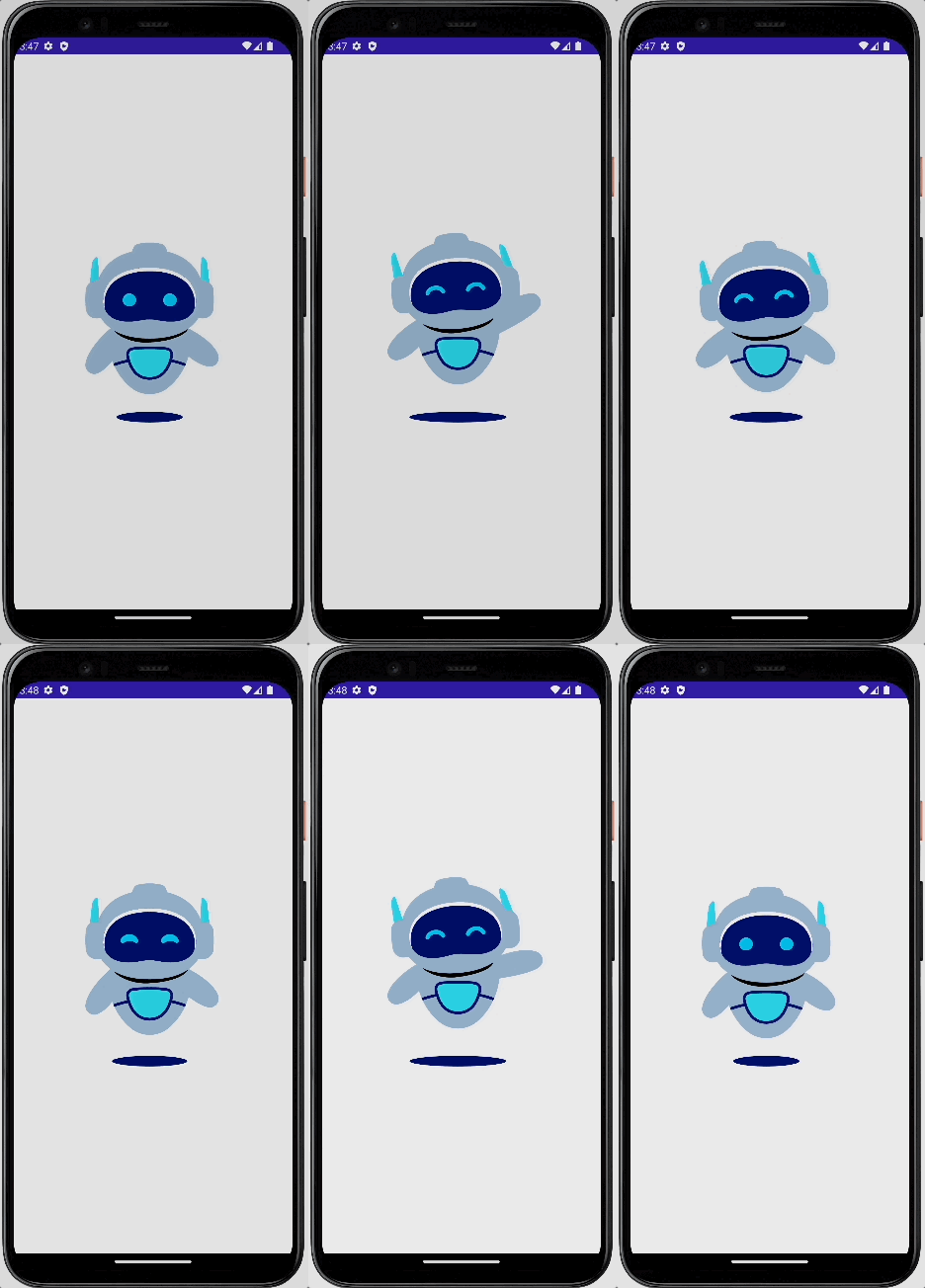
In mobile applications, using Lottie animations offers several significant advantages. First, their small file size and efficiency reduce load times and storage demands, which are crucial for mobile performance. Second, the high-quality, scalable vector animations ensure sharp visuals regardless of the device’s screen resolution. Third, their ability to be manipulated in real time allows for more interactive, user-responsive interfaces, improving user engagement and satisfaction. Finally, Lottie’s backward compatibility ensures animations function seamlessly across a wide range of device generations, providing consistency in user experience.
Goals of the Tutorial
This tutorial demonstrates how to incorporate an existing Lottie animation into your Jetpack Compose app. First, we’ll add the necessary dependencies, then we’ll explore how to use the integrated library within the app.
Prerequisites
To get started, you need two things: a Lottie animation and a basic Jetpack Compose project. For Lottie animations, there are many free options at https://lottiefiles.com/featured. It’s assumed you already know how to set up a Jetpack Compose project, as that won’t be covered here.

Step-by-Step Guide
To start, add the necessary dependency to the module’s build.gradle file.
dependencies {
 implementation 'com.airbnb.android:lottie-compose:6.0.0'
}
Next, add the JSON file to the Jetpack Compose project. Right-click on “res”, then select “New → Android Resource Directory”.

Choose “raw” from the available options and confirm by clicking “OK”.

Finally, drag and drop the Lottie JSON file into the newly created res/raw directory.

As the final step, insert the following code into your project and run the app to see the Lottie animation in action.
class MainActivity: ComponentActivity() {
 override fun onCreate(savedInstanceState: Bundle?) {
  super.onCreate(savedInstanceState)
  setContent {
   LottieTheme {
    Surface(
     modifier = Modifier.fillMaxSize(),
     color = MaterialTheme.colors.background
    ) {
     LottieView()
    }
   }
  }
 }
}

@Composable
fun LottieView() {
 val composition by rememberLottieComposition(spec = LottieCompositionSpec.RawRes(R.raw.robot))
 LottieAnimation(
  composition = composition,
  iterations = LottieConstants.IterateForever
 )
}
The rememberLottieComposition function loads the Lottie animation from the raw resources directory (in this case, an animation named “robot”). The LottieAnimation function displays the animation and sets it to loop indefinitely using LottieConstants.IterateForever.
Conclusion
Incorporating Lottie animations into Jetpack Compose apps is an effective way to enhance user engagement. The high-quality, scalable vector animations reduce load times and storage demands, while their real-time manipulation capabilities enable more interactive, user-responsive interfaces. With this step-by-step guide, adding Lottie animations to your Jetpack Compose project is straightforward.
You can download the full code from here: https://github.com/twissmueller/mobile-snippets
Thank you for reading!