It has been 10 years since I wrote my first mobile app. Back then I acquired a MacBook and a MIDI piano that I wanted to analyze. I started coding and published the results in the Apple App Store.

Later I released the core source code for receiving and interpreting MIDI events on Apple devices and wrote an article about it.
As time went by I began developing mobile apps for Android. As a small practice project I wrote a similar application using the latest tools: Jetpack Compose and Kotlin.
The result of that effort is this blog post and accompanying source code, which can be downloaded here: [Buy Me a Coffee](https://www.buymeacoffee.com/twissmueller/e/130786.

https://www.buymeacoffee.com/twissmueller/e/130786
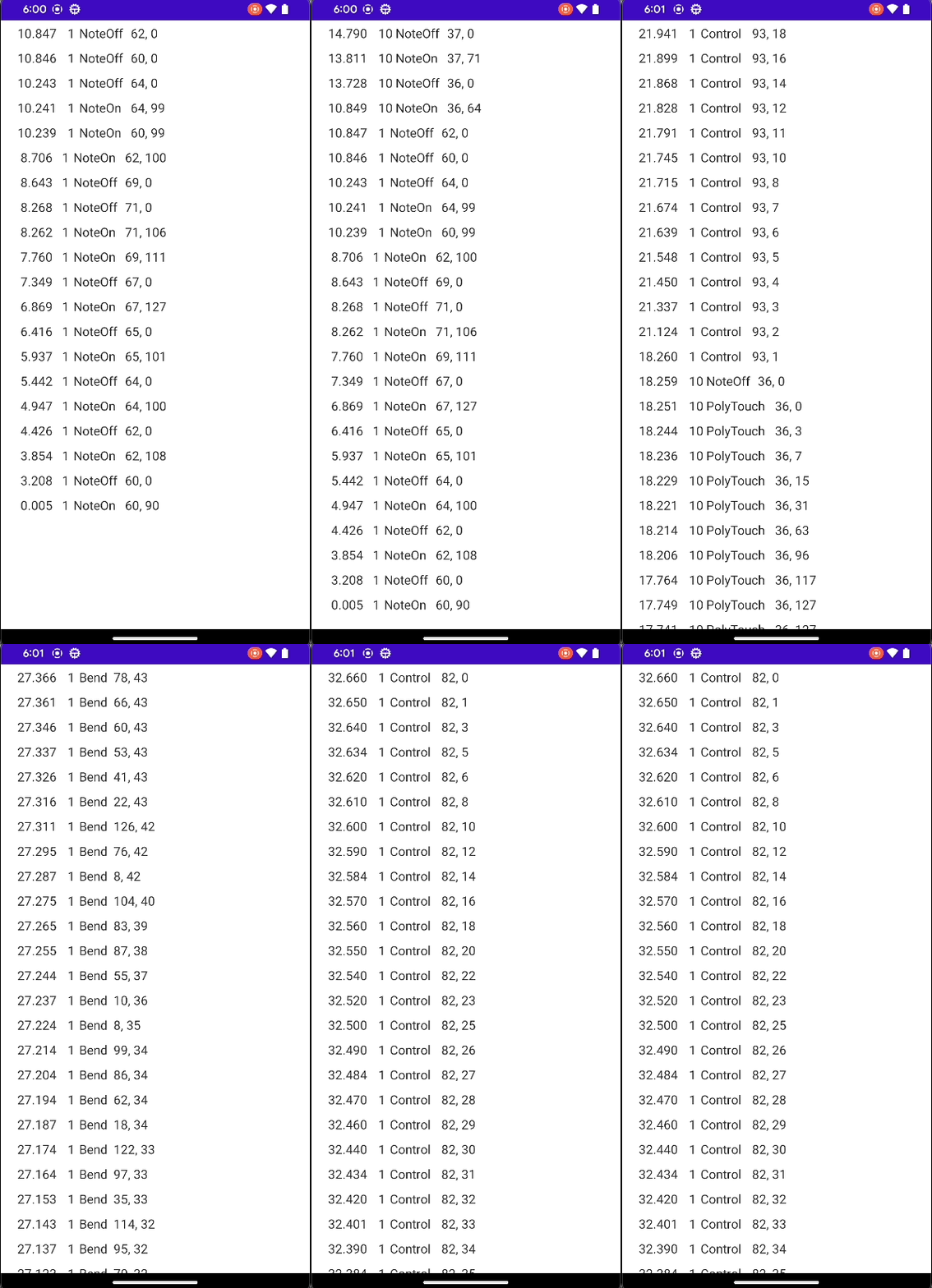
You can see the application in action below. I connected it to my Arturia MiniLab3 via USB-C.
Prerequisites
To build and run the code you need:
- Android device
- MIDI device
- Cable to connect the devices
Code Walkthrough
Below is a summary of the responsibilities of the classes used in this application.
MainActivity: The app’s entry point; created by Android Studio in new Jetpack Compose projects.MyMidiReceiver: The core class. It receives raw bytes, interprets them, and converts them into the app’s MIDI message format.MidiConstants: Constants for interpreting MIDI byte formats and message lengths.MidiEvent: Data object representing a MIDI event.MidiEventList: View that displays received MIDI messages.MidiViewModel: ViewModel that mediates between the view and the receiver for MIDI events.
Also declare that the app uses the MIDI feature by adding the following line to AndroidManifest.xml:
<uses-feature android:name="android.software.midi" android:required="true"/>Receiving MIDI Messages
To receive MIDI messages on Android, connect the MIDI device to the Android device via a cable— typically USB Type X to USB Type Y. I used a USB-C to USB-C cable with an adapter.
If your MIDI device has a standard MIDI-Out port, you can use an adapter such as the Roland UM-ONE mk2.
Bluetooth is an option for some devices, but I have not tested this code with Bluetooth yet.
When everything is connected and you press keys or pads on your MIDI device, the corresponding MIDI messages should appear on your Android device.
Conclusion
You can use the provided source code to display and analyze MIDI messages from a MIDI device on your Android phone or tablet. It can be easily extended to suit your needs. Download it here: Buy Me a Coffee
If you have questions, suggestions, or need help implementing a specific use case, feel free to leave a comment or contact me directly.
Thank you for reading!