A Hands-On Tutorial to ExoPlayer
As an Android developer, you might need to implement video playback in a Jetpack Compose application. I was in the same situation, researched this topic, and found a nice solution which I present in this tutorial.
When researching, I came across two options:
- MediaPlayer and
- ExoPlayer
I chose ExoPlayer because it seemed more flexible and feature-rich. It also appears to be more widely used, so I could find more examples and discussions.
There are many tutorials already, but even recent ones sometimes use deprecated code. I used those as a starting point and updated the deprecated parts, then stripped away unnecessary pieces to produce a minimal working solution.
The result is an up-to-date, fully working Jetpack Compose app that takes a video URL and displays the video in the app.
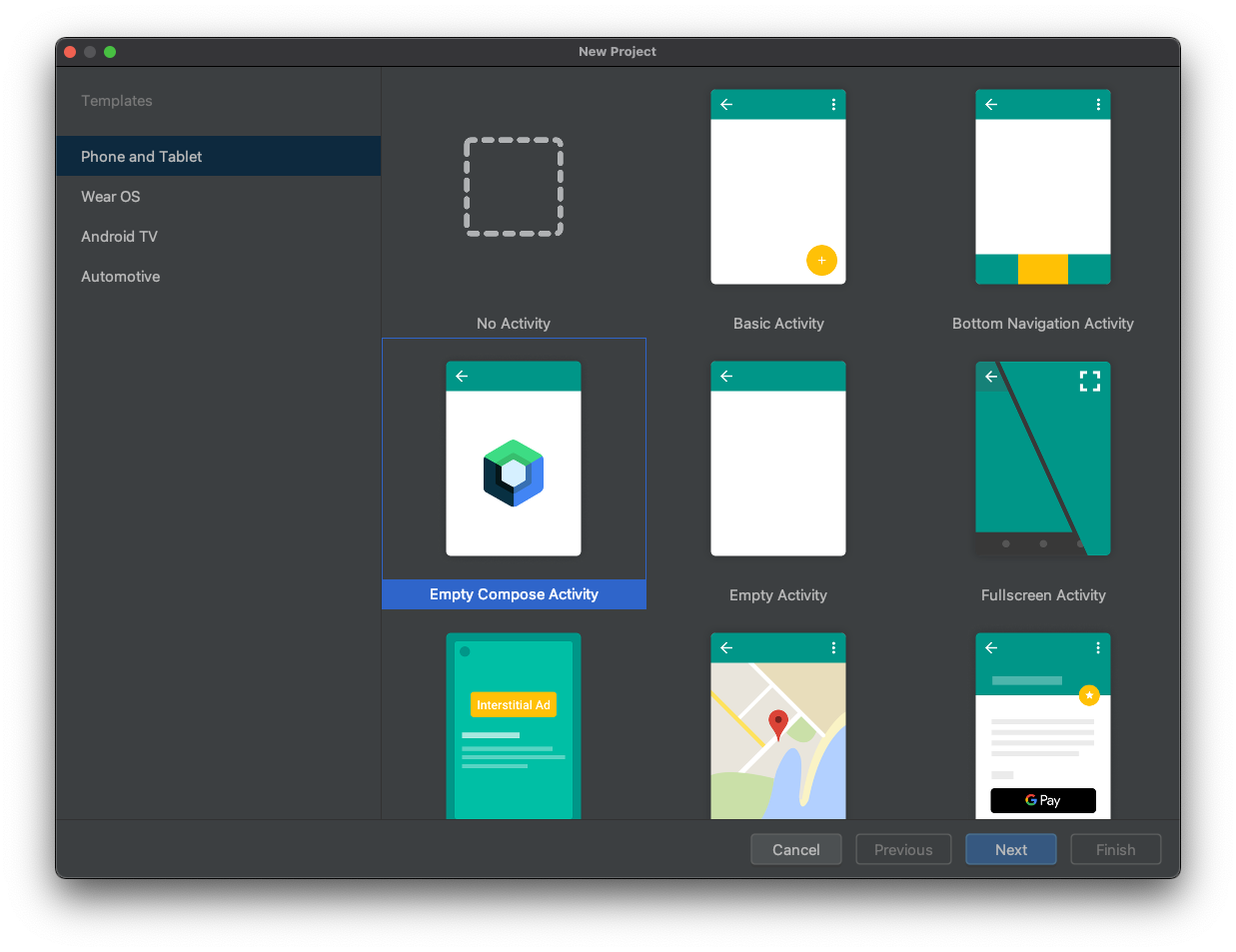
Let’s start by creating a new project in Android Studio and choose “Empty Compose Activity”.
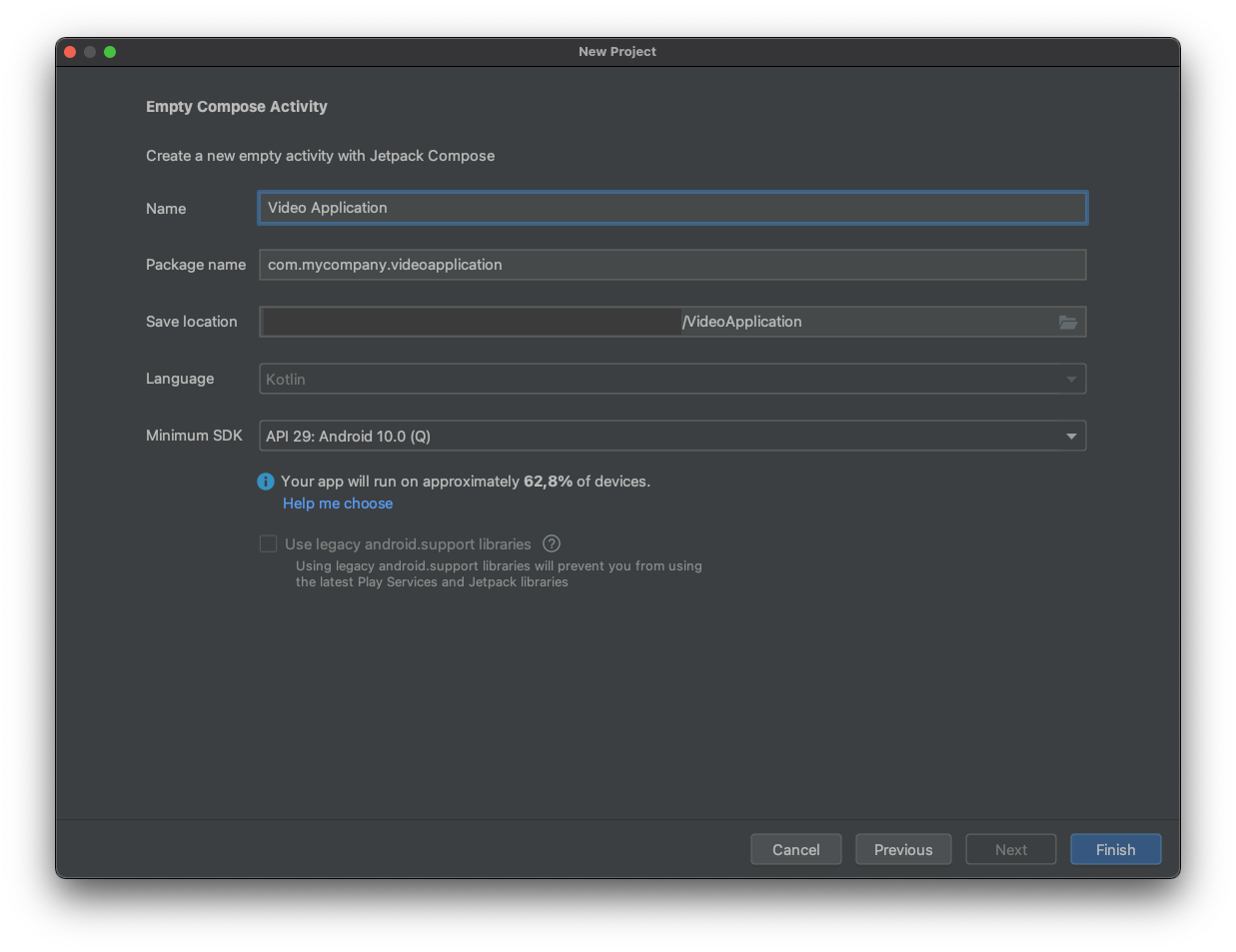
Fill out the necessary fields for the new application.
First, add the ExoPlayer dependency in the build.gradle:
implementation 'com.google.android.exoplayer:exoplayer:2.18.1'Next, I created a composable called VideoView that encapsulates all ExoPlayer-related code.
@Composable
fun VideoView(videoUri: String) {
 val context = LocalContext.current

 val exoPlayer = ExoPlayer.Builder(LocalContext.current)
 .build()
 .also { exoPlayer ->
   val mediaItem = MediaItem.Builder()
   .setUri(videoUri)
   .build()
   exoPlayer.setMediaItem(mediaItem)
   exoPlayer.prepare()
  }

 DisposableEffect(
  AndroidView(factory = {
   StyledPlayerView(context).apply {
    player = exoPlayer
   }
  })
 ) {
  onDispose { exoPlayer.release() }
 }
}
Let’s look at this code more closely.
There are four points to mention:
- Set up the ExoPlayer instance
exoPlayerby callingExoPlayer.Builderand providing the currentLocalContext. - Create the
mediaItemfrom the video URI usingMediaItem.Builder(). - Create a
DisposableEffectthat does two things: when the composable is shown it creates theStyledPlayerViewand assigns theexoPlayer; when the view is disposed, it releases theexoPlayer.
Please check the resources section at the end of this article for links about Jetpack Compose side effects, specifically DisposableEffect.
Now change MainActivity to use VideoView. The final result looks like this:
class MainActivity: ComponentActivity() {
 override fun onCreate(savedInstanceState: Bundle?) {
  super.onCreate(savedInstanceState)
  setContent {
   VideoApplicationTheme {
    Surface(
     modifier = Modifier.fillMaxSize(),
     color = MaterialTheme.colors.background
    ) {
     VideoView(videoUri = "https://storage.googleapis.com/exoplayer-test-media-0/BigBuckBunny_320x180.mp4")
    }
   }
  }
 }
}
You can also update the preview as follows:
@Preview(showBackground = true)
@Composable
fun DefaultPreview() {
 VideoApplicationTheme {
  VideoView(videoUri = "https://storage.googleapis.com/exoplayer-test-media-0/BigBuckBunny_320x180.mp4")
 }
}
Everything is in place to start the app. Wait!
Almost everything— if you try to run the app as-is, you’ll get an exception:
E/LoadTask: Unexpected exception loading stream
  java.lang.SecurityException: Permission denied (missing INTERNET permission?)
  at java.net.Inet6AddressImpl.lookupHostByName(Inet6AddressImpl.java:150)
 ...
Because the video is loaded from the Internet, the app needs Internet permission.
Add the following line to AndroidManifest.xml (under app/manifests):
<uses-permission android:name="android.permission.INTERNET"></uses-permission>The file then looks like:
<?xml version="1.0" encoding="utf-8"?>
<manifest xmlns:android="http://schemas.android.com/apk/res/android"
 package="com.mycompany.videoapplication">

 <uses-permission android:name="android.permission.INTERNET"></uses-permission>

 <application
  android:allowBackup="true"
  android:icon="@mipmap/ic_launcher"
  android:label="@string/app_name"
  android:roundIcon="@mipmap/ic_launcher_round"
  android:supportsRtl="true"
  android:theme="@style/Theme.VideoApplication">
  <activity
   android:name=".MainActivity"
   android:exported="true"
   android:label="@string/app_name"
   android:theme="@style/Theme.VideoApplication">
   <intent-filter>
    <action android:name="android.intent.action.MAIN" />

    <category android:name="android.intent.category.LAUNCHER" />
   </intent-filter>
  </activity>
 </application>

</manifest>
Start the app and you should see the video playing as shown below.
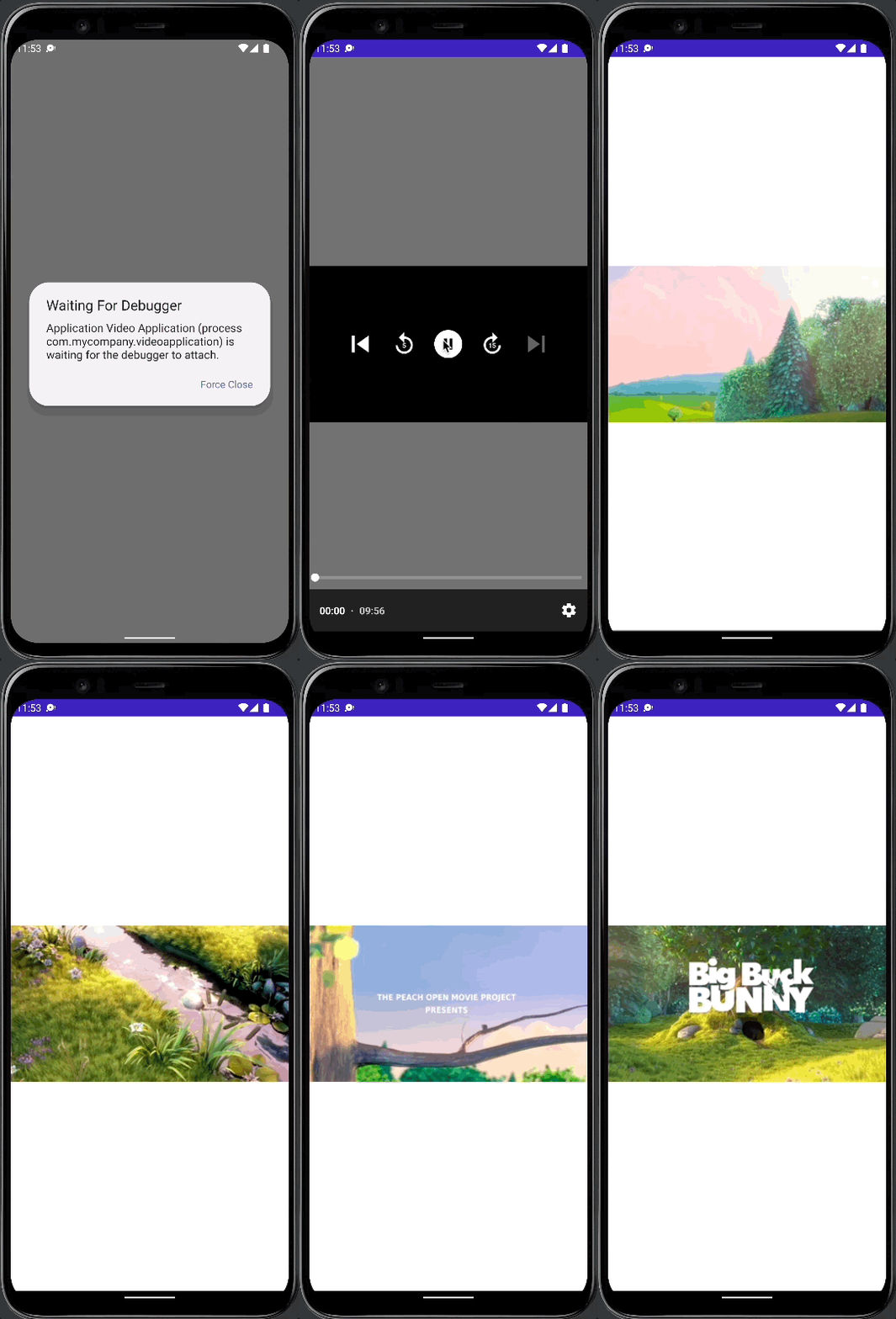
Hopefully everything worked. If not, please let me know in the comments.
As promised, here are some configuration options you might find useful:
- Auto-start the video
- Hide the controls
- Repeat the video
- Change the aspect ratio
Auto-start the video after the view is loaded with:
exoPlayer.playWhenReady = trueTo hide the player controls, add these lines to the StyledPlayerView setup:
StyledPlayerView(context).apply {
 hideController()
 useController = false

 player = exoPlayer
}
Configure the player to repeat the video infinitely:
exoPlayer.repeatMode = Player.REPEAT_MODE_ALLTo change the aspect ratio (for example, to fill and crop the video into the view):
exoPlayer.videoScalingMode = C.VIDEO_SCALING_MODE_SCALE_TO_FIT_WITH_CROPPINGI hope this tutorial was helpful. Please let me know in the comments how you liked it and especially if any code is deprecated when you try it.
Thank you for reading!