Let’s dive deeper to find out more about the MIDI devices connected to your Mac by opening Audio MIDI Setup (also called MIDI Studio).
This is how it looks on my machine:
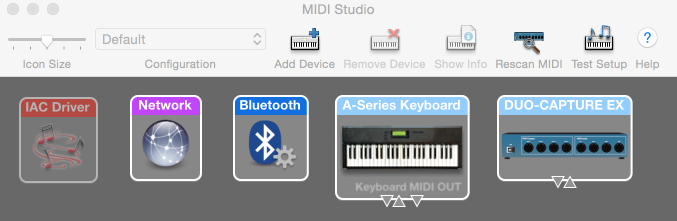
Each box in the picture represents a MIDI device— it can be a physical device, like a controller, or a software interface, like the network or Bluetooth interfaces. Devices have entities that logically group sources and destinations. Sources and destinations, also called endpoints, are your MIDI In and Out ports, whether 5-pin connectors or USB.
All these MIDI objects have properties. Properties add information to the objects and are provided by the manufacturer, your system, or even yourself.
The MIDI Services Reference represents this hierarchy with the type MIDIObjectRef and its subtypes MIDIDeviceRef, MIDIEntityRef, and MIDIEndpointRef.
I currently have two external devices connected: a Roland A-88 MIDI controller and a Roland Duo-Capture EX audio interface.
The sources and destinations are represented by the little triangles in the picture above. The A-88 has two entities: one with a source and a destination, and another with a source only. The Duo-Capture has one entity with both a source and a destination.
The back of the Roland A-88 looks like this:
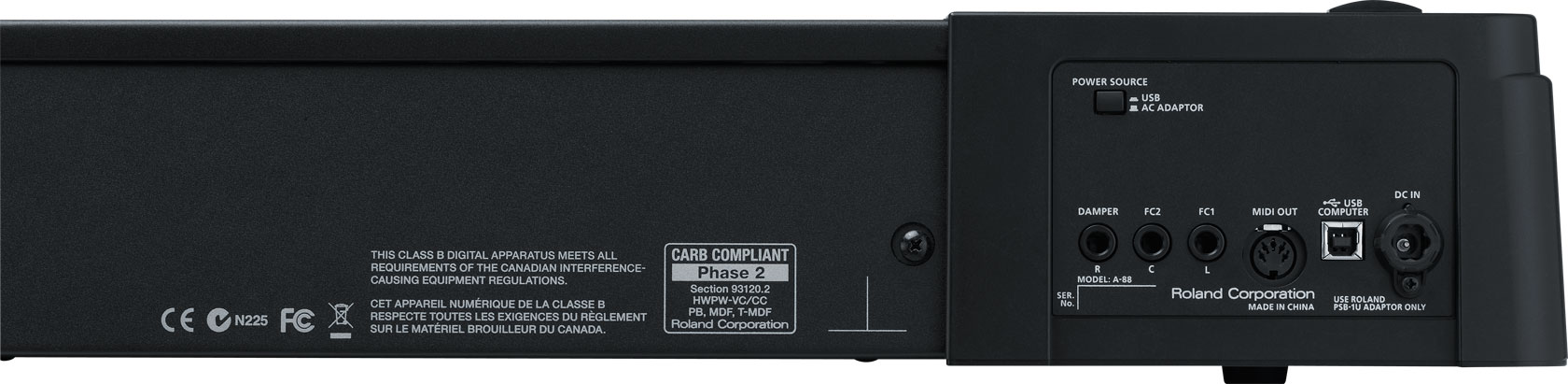
It has one MIDI Out and other ports for pedals, USB, and power. In the last post we wrote code to print all the properties of our devices. Looking at the ones for the Roland A-88, everything is clear.
{% gist 48649bba91d1d7cac31e roland-a88.txt %}
There are the two entities again, one with a source and a destination (the USB port ), and the MIDI Out port as the single-endpoint entity.
Let’s check the Duo-Capture EX as well:
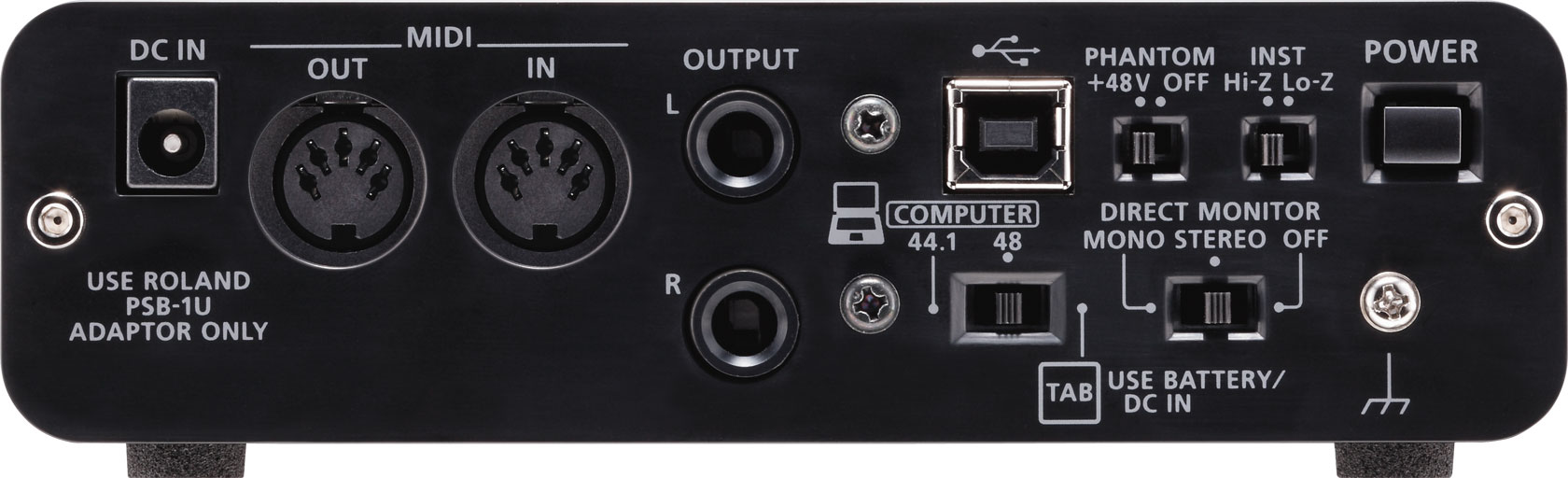
All clear: one entity with a source (MIDI Out) and a destination (MIDI In). This also appears in the properties printout:
{% gist 48649bba91d1d7cac31e roland-duo-capture-ex.txt %}
Now we ’ll dig deeper to find how to access those endpoints, especially the sources.
When I built MIDI Aid for Mac and for iPad, iPhone and iPod touch, I wanted to grab everything from MIDI Out and feed it into my app to display that output.
This is easy: query the system for all sources. In this example I also show how to get two properties from the sources: the name and the unique ID.
{% gist 48649bba91d1d7cac31e example-2.swift %}
Running this with all my devices turned on produced the following output on my Mac:
Number of sources: 3
Session 1: 1652107473
Keyboard: 2124965650
DUO-CAPTURE EX: -904633270
We ’re one step further in using CoreMIDI and understanding how your Mac sees and structures MIDI devices— and we know how to access the information for all those devices.
Done for today!