Simplify
The layout and design of this blog have been simplified. Before the change, the blog was based on Octopress, which itself is a framework for Jekyll.
I wanted less, so I removed Octopress and implemented this blog using Jekyll only. The post that follows outlines the steps I took to migrate from Octopress to Jekyll.
Welcome Jekyll
First, I set up a “blank” Jekyll blog by creating a new directory (mkdir new_blog) and changing into it.
Then I created a Gemfile with the following content:
source 'https://rubygems.org'
gem 'jekyll'
With bundle install, the gem got installed.
Now I was ready to generate the blog and have a first look at it in the browser with
bundle exec jekyll new . -f
bundle exec jekyll serve
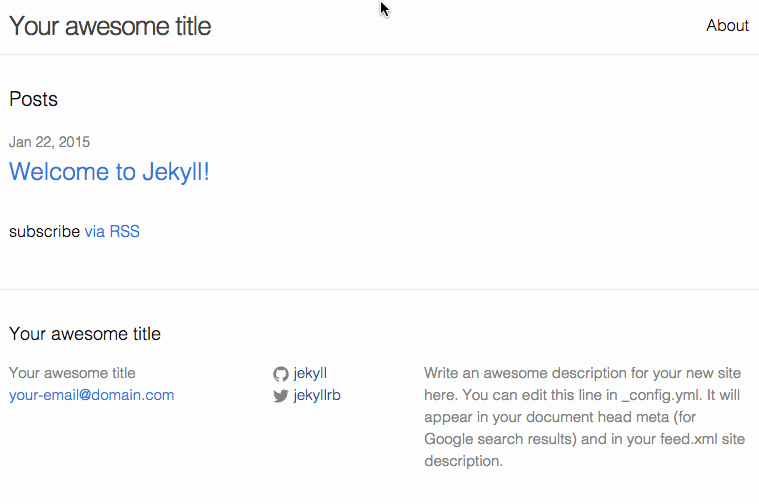
After those quick steps I was presented with that nice homepage:
Content Migration
Time was up for migrating the content from my old blog to the new one, but first I had to fix something.
When I clicked on the first example blog post, the URL looked like this:
http://localhost:4000/jekyll/update/2015/01/14/welcome-to-jekyll.htmlThat was not what I wanted. I changed the file _config.yml and added the line
permalink: /blog/:year/:month/:day/:title.htmlto get a URL like this:
http://localhost:4000/blog/2015/01/22/welcome-to-jekyll.htmlBetter :-)
Then I copied everything from my Octopress blog directory /source/_posts into my Jekyll blog under /_posts.
Since I had used some Octopress-specific tags, I had to change them.
In Octopress, I formatted code examples with
{% raw %}
{% codeblock %}
{% endraw %}
... some code...
{% raw %}
{% endcodeblock %}
{% endraw %}
That needed to be changed to
{% raw %}
{% endraw %}
... some code...
{% raw %}
{% endraw %}
To make that work, a gem called rouge had to be installed and the line highlighter: rouge had to be added in _config.yml.
I also used the Octopress tag for including images, e.g. {% raw %}{% img <path_to_image> Title %}{% endraw %}, and changed them to .
When I was done, I previewed everything with
bundle exec jekyll serveGoing Live on Heroku
At that point, I had my new blog ready on my local machine. Of course, I wanted everything back on Heroku.
I found this wonderful post that explained how to set up your Jekyll blog to run on Heroku.
First add the following to _config.yml
exclude: ['vendor']Create a new file called Procfile and add
web: bundle exec jekyll build && bundle exec thin start -p$PORT -V
console: echo console
rake: echo rake
Edit the Gemfile again and append the following lines
gem 'rake'
gem 'foreman'
gem 'thin'
gem 'rack-contrib'
Another file had to be created, called config.ru with the following code
require 'rack/contrib/try_static'

use Rack::TryStatic,
:root => "_site",
:urls => %w[/],
:try => ['.html', 'index.html', '/index.html']

run lambda { |env|
 return [404, {'Content-Type' => 'text/html'}, ['Not Found']]
}
I’m not going to explain much in this post about what all this actually does. As a pointer, check out the individual gems in the Gemfile to get a first view of things.
Then I installed the Heroku Toolbelt and ran the following commands in my terminal:
bundle install
git init
git add.
git commit -m "My initial commit."
heroku git:remote -a <my_heroku_blog_name>
git push heroku master --force
heroku open
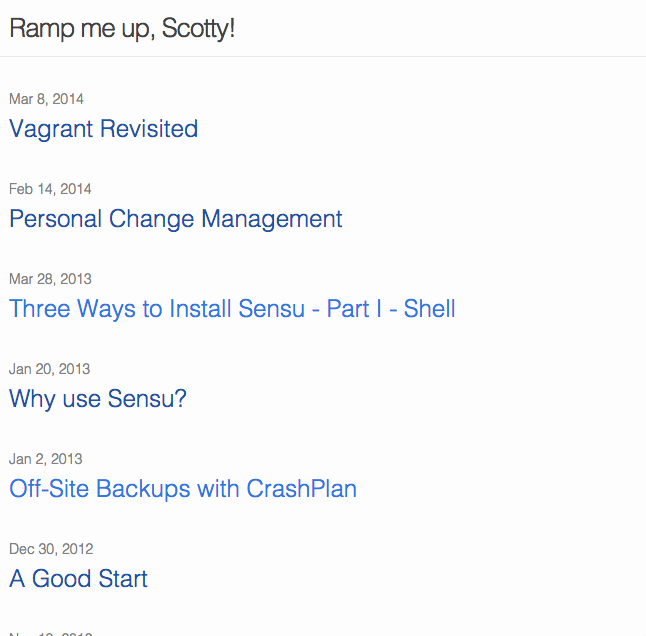
Et voilà, welcome to my new blog
Maybe I’ll change back to Octopress someday. Octopress 3 was just announced with some interesting stuff and addresses some caveats from the past.
Done for today!